
Selection Hunter CrossOver

On the main menu select Analysis and then Selection Hunter CrossOver.
Selection Hunter CrossOver will match up your Selections (Historical or Daily) with our Selection Hunter database giving you access to almost 200 Horse Racing Filters and around 160 Greyhound Racing Filters that you can use on your own data.
Users may prefer to watch the video tutorial that covers Selection Hunter CrossOver on our Video Tutorial Page. (Video Number 15).
Stage 1 - Load Your Previous Data into TSM
Required data is the Selection name and the date the selection raced. Make sure that either the 'Spare 1' or 'Spare 2' column contains the date data. The format of the date data at this stage doesn't matter. As long as it is consistent through out TSM should be able to use it.
Loading Data Reminders:
In our example below the date is in the Spare 1 Column in the format of 'dd/MM/yyyy HH:mm'.

Stage 2 - Start Selection Hunter CrossOver
Go to the Analysis Tab and then press 'Selection Hunter CrossOver' to start the Selection Hunter CrossOver Wizard. The initial screen will appear as below: The first 5 rows of your bet data are also shown so that you can easily see what column the date is in and what format your date is in.

Stage 3 - Prepare Your Data
Confirm the column that contains the Date. Then confirm the Date Format. In this instance the format of the date is in the 'dd/MM/yyyy' format. Press the 'Prepare Data for Processing' when you are ready.

The prepared data is then shown in the Data Grid. Make sure the date format is shown in the 'yyyy-MM-dd' format. If it is not then try again using a different format in the drop down.
When the data was prepared, all apostrophes and tags <> as well as any runner numbers will automatically be removed from the Selection Column before being made upper case. This increases the chance of your data being matched with a selection in our database.
The limit is 10,000 selections. Anything after the first 10,000 will be ignored.
The Next button will be enabled if TSM believes there is data available. Press 'Next' when ready to proceed. The Second part of the Selection Hunter CrossOver Wizard will be shown similar to below :
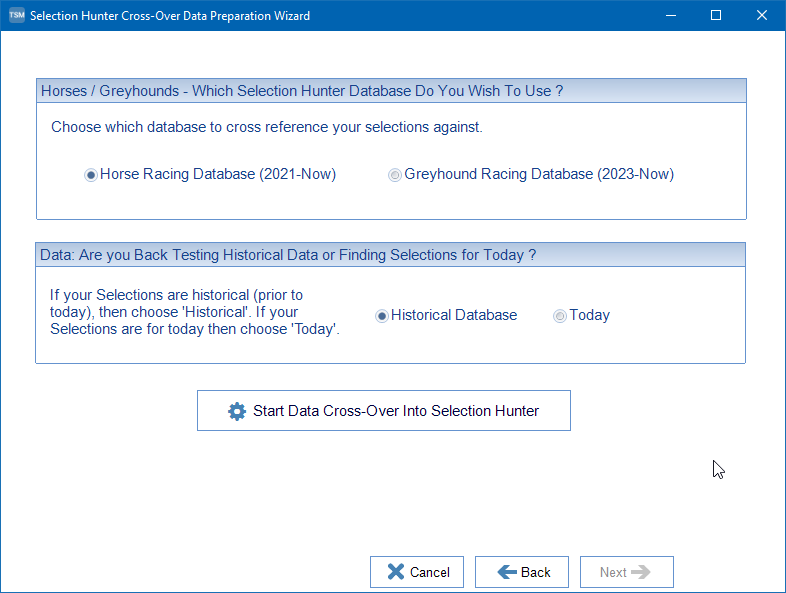
Confirm which database you wish to compare your data against. Horse or Greyhound. In this instance I am using Horse Racing Data. My data is historical data. Therefore the Historical Database is selected. If my data was selections for today then I would have selected the 'Today' database instead.
When ready press 'Start Data CrossOver Into Selection Hunter Button. This will start the process of matching your data against our Selection Hunter Database. If selections are found a dialog box will confirm how many matches were found.

Press OK to continue. Selection Hunter will now start up in CrossOver Mode where the matched selections have become the database.

Press OK on the dialog box to continue. The dialog box is letting you know that CrossOver Mode is in use. It is also warning you that cannot switch from Historical to Daily and vice versa. You can only use whatever your data was matched against. In this instance 'Historical'.
Stage 4 - Analysing Your Results
Selection Hunter has its own help section which may be useful if you are a first time user - Selection Hunter Help Chapter
Press 'Run Query Using Settings Below' to view ALL your matched selections. You will need to switch the Date Range if your data goes back more than 6 months or contains more than 2000 rows.
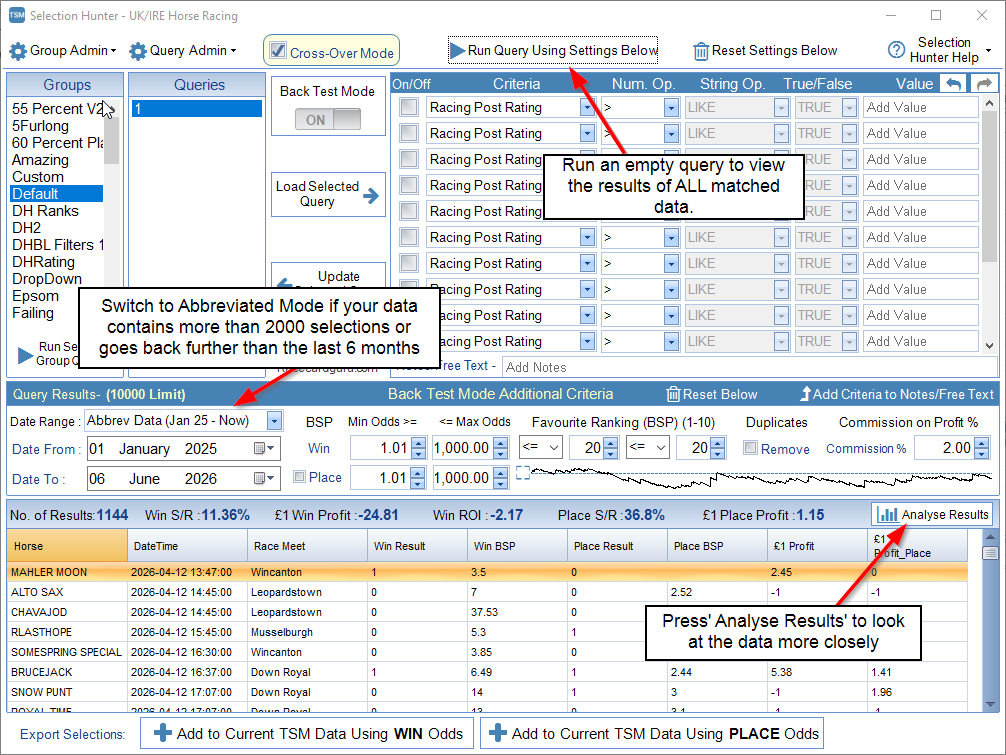
We now have access to all 200 Horse Racing filters in Selection Hunter. We can start adding our own filters straight away or look at some Analysis first. Press 'Analyse Results'.
Confirm which type of data you wish to look at further (Win/Place/Single/Dutch) and press 'Additional Breakdown'.

The Additional Breakdown screen opens. The default selection on the drop down is 'Course'.

Use the drop down to select over 60 Breakdown Filters available.

Look through the break downs until you find something interesting. In this instance HHI Index of less than 0.15 shows great promise. In Horse Racing 0.15 is the threshold that signifies a competitive race. There isn't an odds on favourite. There is value to be had.

We can then add anything interesting back into Selection Hunter. I have added the HHI Index must be less than or equal to 0.15 and then pressed 'Run Query Using Settings Below'.

Hopefully you can see just how powerful this feature is. For that reason it is ONLY available to Subscribers only and is therefore not available in any Trial Form.
The Selection Hunter CrossOver can be used in exactly the same way to filter your daily selections. Add the day's selections into TSM. Use any odds and any results string. All that is required is the Selection name and the date. Start the CrossOver Wizard making sure you select the Daily Database. You can then add your own queries and filter the selections as you desire. Filters such as Win, Place BSP, Fav Rank and HHI Index are ignored when used in Daily Mode.